Design your story
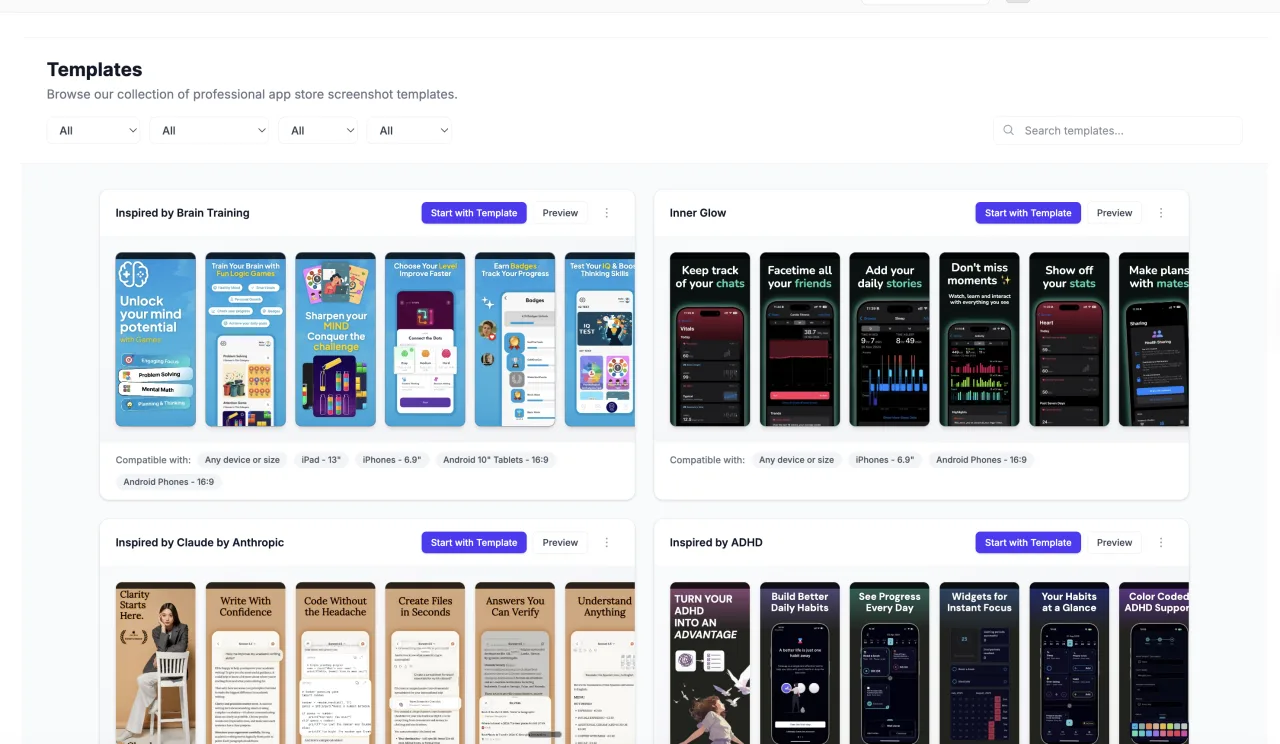
Start from a template, arrange devices and captions, and shape a consistent visual story across the screenshot set.
SMARTLINKS / SCREENSHOT STUDIO
Create polished app store screenshots with device frames, flexible layouts, localized captions, and export workflows. Keep every design beside the app it belongs to.
Your SmartLinks account. Your apps. One connected workspace.
WHAT’S INSIDE
Start with the job in front of you. These focused tools share the app context you already have in SmartLinks.
Start from a template, arrange devices and captions, and shape a consistent visual story across the screenshot set.
Adapt captions and artwork for different languages while keeping each market connected to the same project.
Choose supported store sizes, review the rendered images, and use connected store upload workflows when your assets are ready.
FROM IDEA TO ACTION
Screenshot Studio uses your existing app and account, so the work stays connected as you move through the process.
Read the practical guide ↗Choose your app and start a screenshot project.
Add real app captures, choose a layout, and refine captions.
Preview each language and device size, then export.
GOOD TO KNOW
Bring your app screenshots. Store upload requires connected Apple or Google credentials and the right permissions.
No. Sign in with your existing SmartLinks account and select an app you can access. Existing app ownership and team permissions still apply.
This product uses your SmartLinks plan and its feature allowances. The pricing page shows current plans that include Screenshot Studio. Choosing a different suite plan changes your shared subscription; it does not add a separate subscription for this product.
Compare eligible plans →Yes, when your plan and permissions include them. Your apps and connected services stay in the same SmartLinks workspace. Some workflows need additional provider setup.
Explore the product collection →YOUR NEXT GOOD MOVE
Start with Screenshot Studio. Keep the whole picture connected.
BETTER TOGETHER